Android GX WiFi Display: a useful job for a spare tablet
Use a compatible Android phone or tablet as a dedicated Victron GX screen, with better connection handling in the v1.2 update.
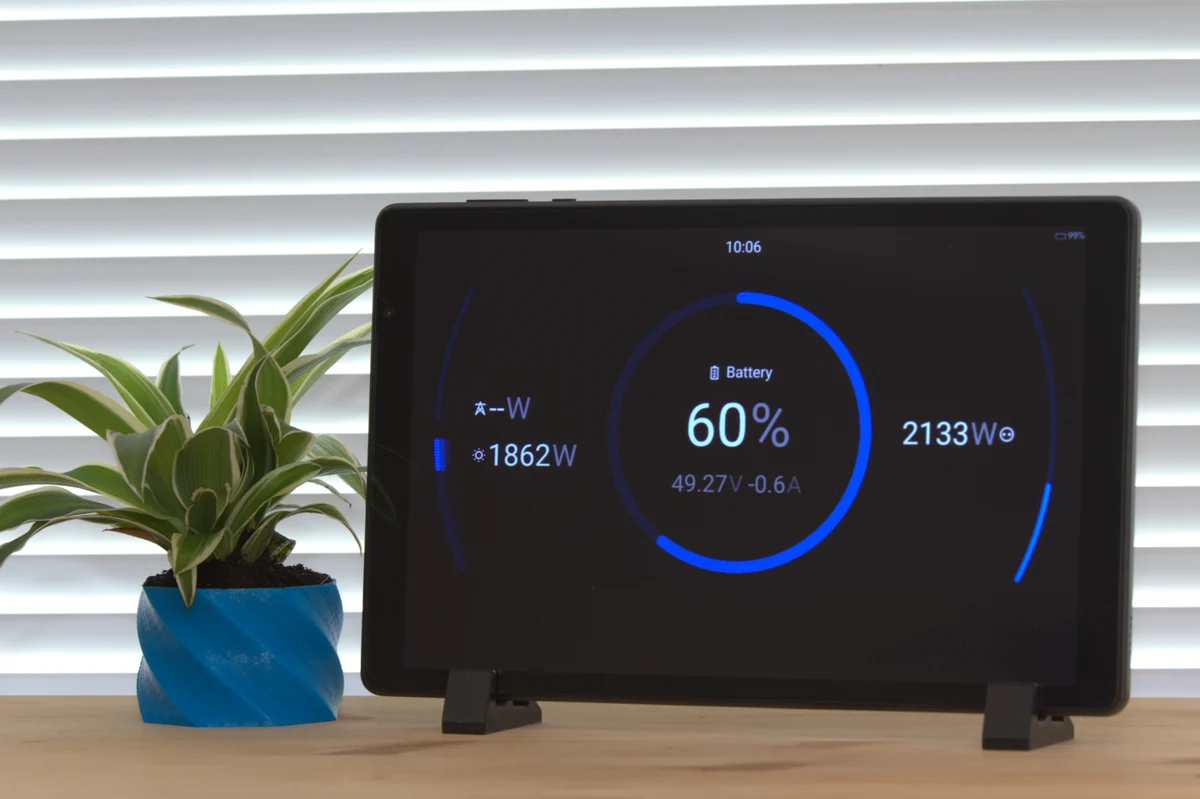
A system display is most useful where you can easily see it: at a desk, in a living area or near the controls in a boat or camper. Victron’s Android GX WiFi Display gives a compatible spare phone or tablet a practical role as a wireless screen for an existing GX device.
Victron’s 29 September 2026 announcement highlights reliability improvements in version 1.2. If you already use an Android GX screen, this is an update worth checking. If you are planning one, there are a few setup decisions to understand first.
A screen for your GX system
The app provides monitoring and control of a GX device over the local network. The GX remains the equipment gathering system information and coordinating the connected devices; the Android device provides another place to see and operate that interface.
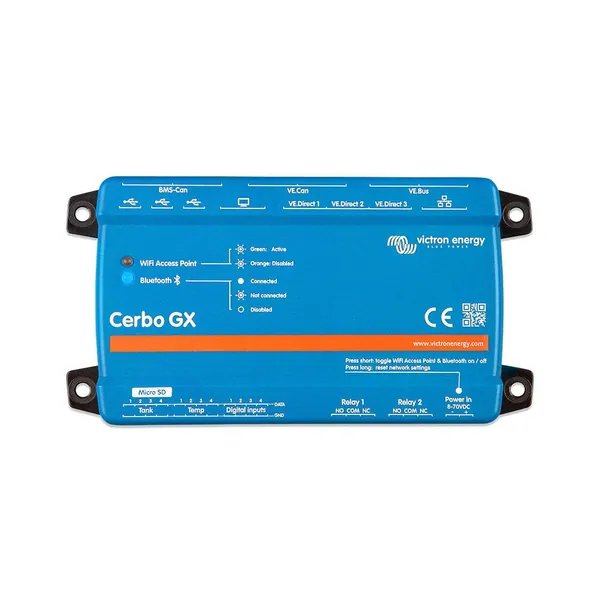
It can be the screen for a standalone Cerbo GX, or an additional display alongside a GX Touch or Ekrano GX. Multiple Android displays can connect to the same GX, with each showing its own page. That can be useful when the equipment is in a utility room and you want an overview somewhere more convenient. Victron explains the arrangement in its manual introduction.
What version 1.2 improves
The September announcement describes four changes aimed at making a dedicated wireless display more dependable:
- Keeping the GX connection alive when the Android screen is off and the device is on its charger.
- Better WiFi connection handling, particularly with the GX device’s built-in access point.
- Improved discovery and reconnection when the GX moves on the network.
- Fewer requested permissions, addressing Play Protect rejections during QR-code provisioning.
These are improvements to the Android display app. Check the GX device’s own Venus OS version separately when preparing the system.
Choose a device you can dedicate to the job
The installation requirements are Android 8 or later and a GX running Venus OS 3.50 or later. Device manufacturers implement Android differently, so confirm that the particular phone or tablet supports the recommended QR-code setup before committing it to the installation.
Back up the Android device first. Victron’s recommended setup uses a factory reset, permanently erasing its existing data. It then runs in dedicated kiosk mode: everyday browsing, email and other apps are unavailable until the device is reset again.
Plan a permanent charging supply and a sensible mounting position. The data connection is wireless, but the screen still needs power. Choose a location with reliable WiFi coverage and where the display will be easy to read and operate.
The manual also describes an alternative APK installation that avoids the factory reset. Victron advises against this approach for end users because interruptions, background apps and manual-only updating make it less suitable as a dedicated system screen.
Local viewing can continue without internet
Internet access is needed to download and install the software. Once set up, the display can work on a local WiFi network without internet access, or connect to the GX’s built-in access point. The local network, GX and Android device must still be working and powered.
This makes the distinction between local viewing and remote monitoring useful when planning a system. Tell us where you want to see the information and whether you also need access while away from the site.
Updating and controlling the display
To check for an update immediately, press and hold the lower-left corner of the Android display for five seconds to open its configuration menu, then use the update check and follow the prompts. Victron’s v1.2 announcement also describes overnight installation when automatic updates are enabled.
Remember that this interface can control the GX system. The optional Android service-menu PIN protects those Android settings; it does not protect changes to GX settings. Agree who may use the display and configure system access appropriately. The initial-configuration guide explains the PIN’s scope and GX selection.
Make the monitoring fit the installation
A dedicated Android screen can be a useful way to put an existing device to work. Our starting questions are the GX model and firmware, the Android device, the available network and where you want the display.
Talk to our Ballito team about your monitoring arrangement. We can help work through an Android display, a GX Touch or the wider GX equipment your system needs, with local advice and support behind the choice.
Further reading from Victron
Technical guidance and manufacturer documents for the equipment and principles discussed here. Use the documentation for your exact model and system.
- Victron Professional — Android GX WiFi Display v1.2, 29 September 2026
- Android GX WiFi Display manual — purpose, network and dedicated-device limitations
- Installation — Android/Venus OS requirements and reset procedure
- Initial configuration — GX selection and the Android PIN’s scope
- Service menu — configuration and update checks
- Alternative APK installation — limitations and update trade-offs
- Victron’s original Android GX WiFi Display introduction — June 2025